The Meeting Summarizer & Task Creator Agent reads the transcript of every Microsoft Teams meeting, sends each participant a clear summary, and turns the work you agreed on into assigned, prioritised tasks in Azure DevOps. Nobody has to take notes, and nobody has to type up the to-do list afterwards.
Your meeting ends. The follow-up is already done.
Works with: Microsoft Teams · Outlook · Azure DevOps · Azure OpenAI · Power Automate
What the meeting agent does
After each meeting, every participant receives one email containing:
- Meeting rating: an overall score from 1 to 10
- Summary: a short overview of the conversation
- Key points: the main topics discussed
- Action items: what needs to be done and who is responsible
- Decisions: what the team agreed on
- Created tasks: a table of the new Azure DevOps tasks, each linked directly to DevOps
Example of the created-tasks table (illustrative names):
| Task | Assigned to | Priority | Due |
|---|---|---|---|
| Fix Safari login failure | Jonas | 1 – Urgent | Today |
| Update release documentation | Lea | 3 | +3 working days |
How it works
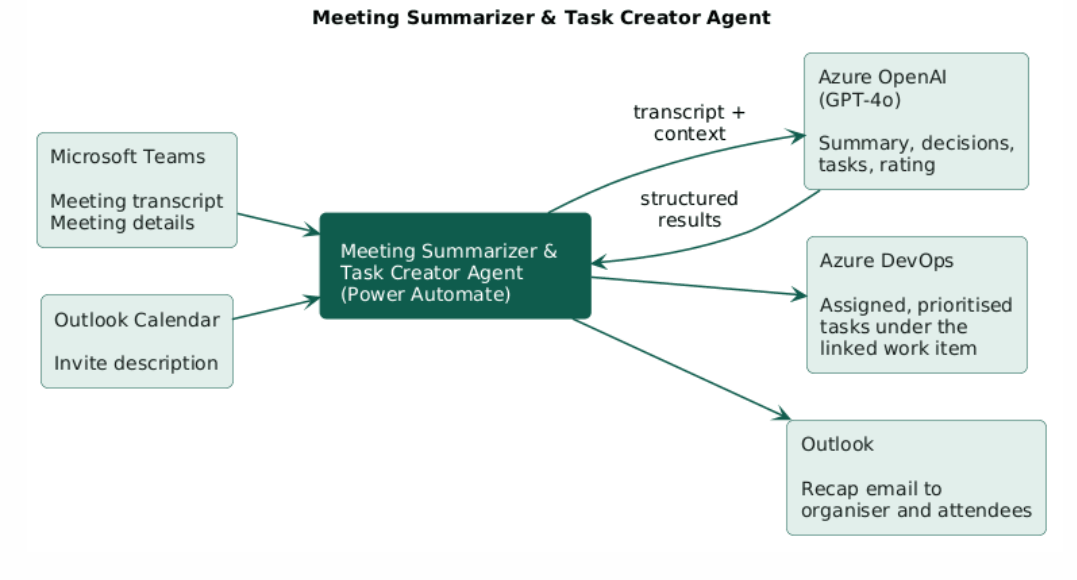
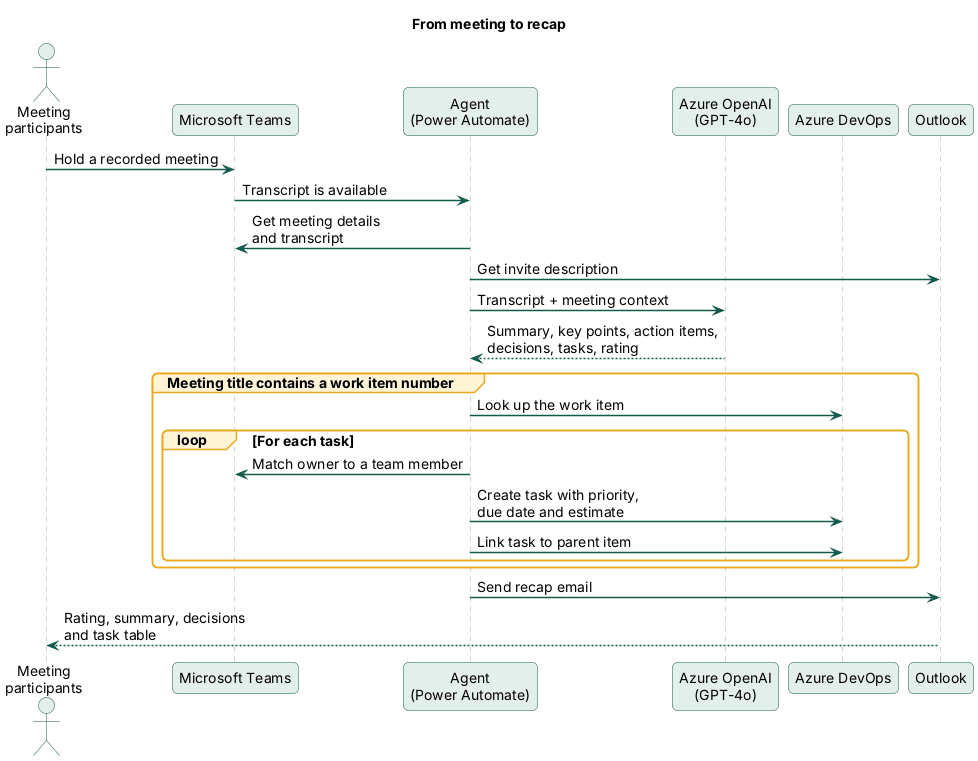
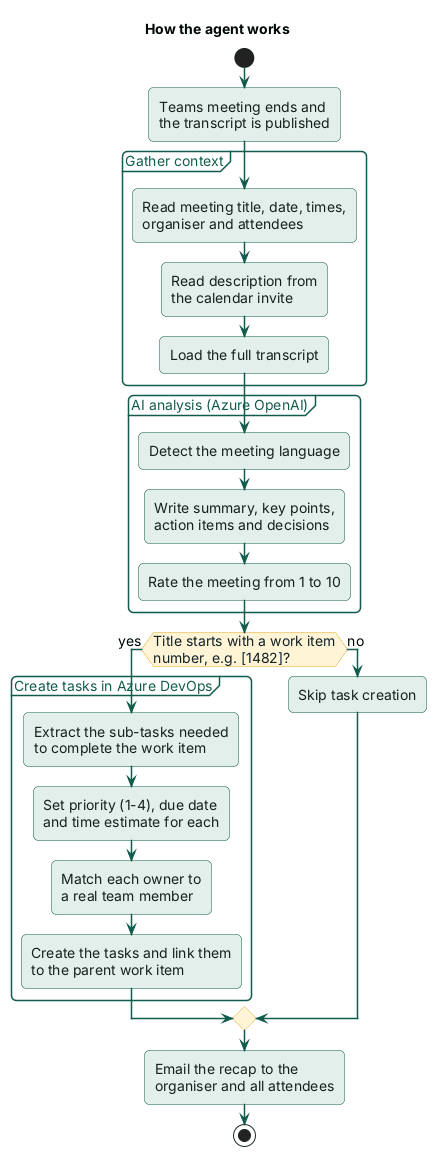
- The transcript becomes available. When a recorded Teams meeting finishes and Teams publishes its transcript, the agent starts on its own. There is nothing to click and no bot to invite.
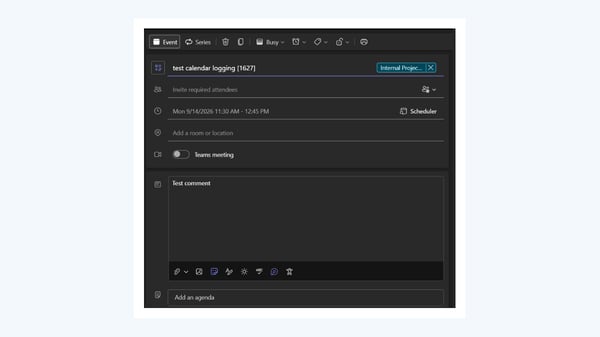
- It gathers the context. The agent collects the meeting title, date, times, organiser and attendees, plus the description from the calendar invite. If the title starts with a work item number in brackets, for example [1482] Sprint review, it links the meeting to that Azure DevOps item.
- AI reads the whole conversation. A GPT-4o model hosted on Azure OpenAI analyses the transcript and returns a summary, key points, action items with owners, decisions and an overall meeting rating. It writes everything in the language the meeting was held in.
- Tasks are created in Azure DevOps. For meetings linked to a work item, each agreed piece of work becomes a Task with a title, description, owner, priority, due date and time estimate. The tasks are attached to the right parent item, so they appear on the board where the team already works.
- Everyone gets the recap. The organiser and every attendee receive one formatted email with the rating, summary, key points, action items, decisions and a table of the new tasks.
It handles the details people usually forget
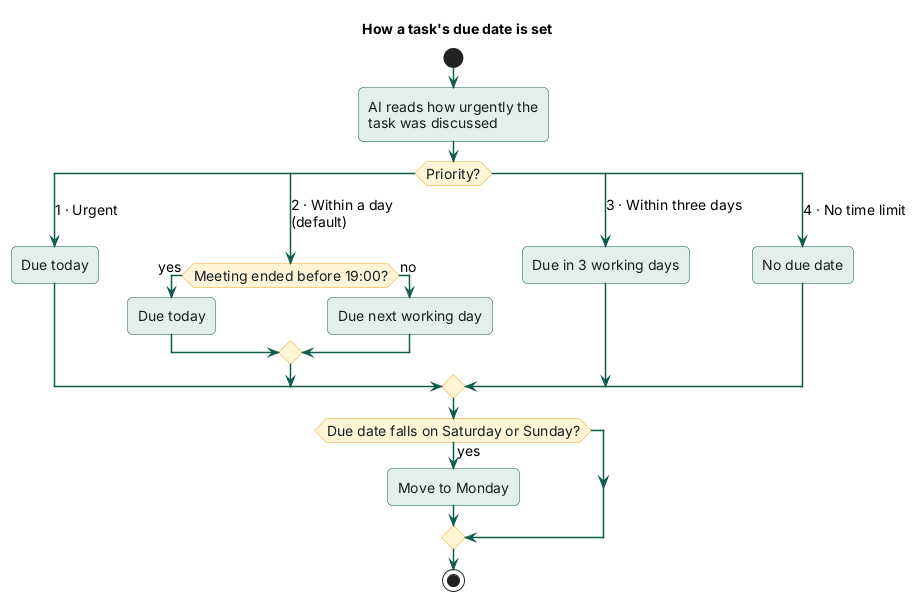
- Deadlines respect the work week. Due dates follow working hours (09:00 to 19:00, Monday to Friday). A deadline that would land on a weekend moves to Monday.
- Owners matched to real people. When someone in the meeting says "I'll take it", the agent matches the name to your team in Teams and assigns the task to that person in DevOps.
- Nothing gets lost. If no clear owner is named, the task is still created and shown as unassigned, so it can be picked up instead of forgotten.
- Any meeting language. German, English or another language: the summary and tasks come back in the language your team actually spoke.
- Stays out of the way. Meetings without a work item number still get a summary email, but no tasks are created. Your board only fills with work that belongs there.
- Keeps the backlog tidy. If the linked item is itself a task, new tasks are attached to its parent instead.
Priorities and due dates
Each task gets a priority from 1 to 4 based on how urgently it was discussed. The due date follows from the priority.
| Priority | Meaning | Due date |
|---|---|---|
| 1 | Urgent | Today |
| 2 (default) | Within a day | Today, or the next working day if the meeting ended after 19:00 |
| 3 | Within three days | Three working days out, weekends skipped |
| 4 | No time limit | No due date set |
Who it's for
- Project and delivery managers who spend the hour after each meeting writing minutes and creating tickets.
- Software and IT teams planning sprints and bug fixes in Azure DevOps.
- Client-facing teams who need a written record of what was decided and who owns what.
What you need
- Microsoft 365 with Teams meeting transcription switched on.
- Azure DevOps for projects and work items.
- Power Automate to run the flow.
- An Azure OpenAI deployment inside your own Azure subscription.
Frequently asked questions
Does the agent record our meetings?
No. It uses the transcript that Microsoft Teams already creates. If a meeting is not recorded and transcribed, the agent does nothing for that meeting.
Do we have to change how we run meetings?
Very little. Turn on transcription in Teams. If you want tasks created in Azure DevOps, start the meeting title with the work item number in brackets, for example [1482] Sprint review. Everything else works as before.
What happens in meetings without a work item number?
Participants still receive the summary email with the rating, key points, action items and decisions. No tasks are created in Azure DevOps.
Who receives the summary email?
The meeting organiser and every attendee.
How soon does the summary arrive?
The agent starts as soon as Teams makes the transcript available, so the email usually arrives a few minutes after the meeting ends.
Which languages are supported?
The agent detects the main language of the meeting and writes the summary and tasks in that language, for example German or English.
Where is our meeting data processed?
The transcript is analysed by a GPT-4o model running in an Azure OpenAI deployment inside your own Azure subscription, and the flow runs in your own Power Automate environment.
What if a task is assigned to the wrong person or has the wrong priority?
The tasks are ordinary Azure DevOps work items. Your team can edit, reassign or close them like any other task.
What does the meeting rating measure?
It is the AI's overall assessment of the meeting on a scale from 1 to 10, based on the transcript. It gives teams a quick signal of how productive a meeting was.
Can we adjust working hours, priorities or the email layout?
Yes. During setup, Auximo adapts the working hours, priority rules, deadlines and email design to how your team works.
Can we use it without Azure DevOps?
Yes, if you only need meeting summaries. Task creation requires Azure DevOps.
Want this running in your Microsoft 365?
Auximo sets the agent up in your environment, connects it to your Teams, Outlook and Azure DevOps, and adjusts working hours, priorities and email layout to how your team works. Learn more about our solutions and AuximoDevelopment.
Talk to Auximo
Book an appointment with the Auximo team to discuss the processes you would like to automate.
Book appointment