Auximo's automated weekly project status report is a Word document that shows every running project at a glance: a traffic-light status, a six-stage timeline, whether anything is needed from you and the payment plan. It is built automatically from project data in Azure DevOps and invoice data in bexio, so nobody has to copy numbers by hand. If you can read a traffic light, you can read your report.
Why we built this
When you hand a project to a partner, one question comes back every single week: "So, where are we?"
At Auximo we think you should not have to ask. Every week, you get one clear document that answers it for you: what is going well, what is running late, what we need from you, and where you stand on payments. No jargon, no digging through emails, no guessing.
That document is our automated weekly project status report: a clear, customer-friendly project report built from the data in Azure DevOps and your invoices. This article walks you through it, step by step. You do not need any technical background.
The short version. Once a week, you receive a Word document with every active project we run for you. Each project has a traffic-light status, a timeline, a payment overview and a clear note on whether we need anything from you.
How your report comes to life
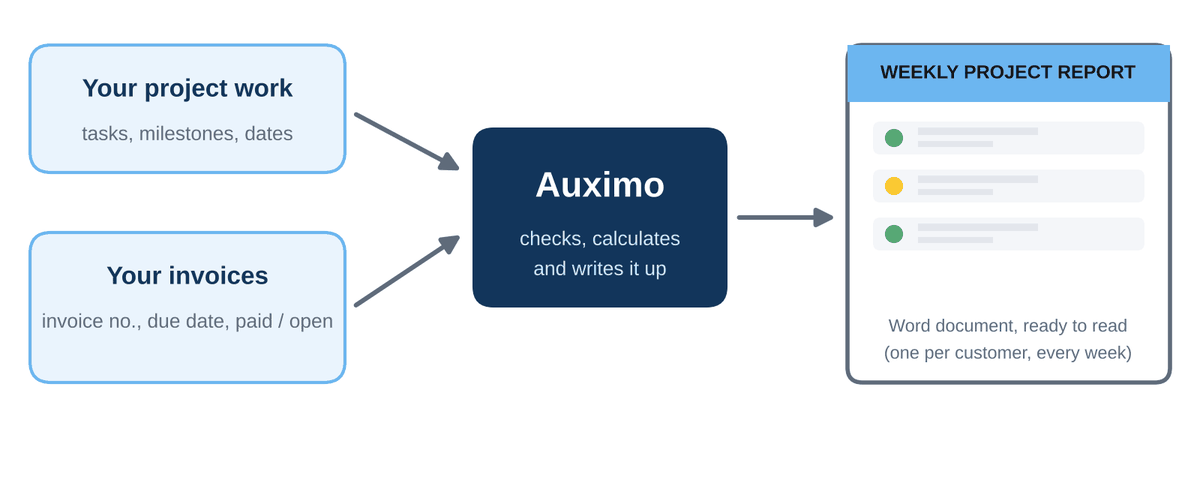
Behind the scenes, two sources of information come together. The first is our project work: the tasks, milestones and due dates of your project. The second is your invoices: invoice numbers, due dates and whether they are paid.
Auximo checks this information, does the date calculations for you and writes everything up in a fixed, familiar layout. The result is a Word document prepared for your company, so the report looks the same every week and you always know where to look.
The tools behind your project report
A good project status report is only as reliable as the tools it is built on. We use established tools you may already know, and connect them so nobody has to copy numbers by hand.
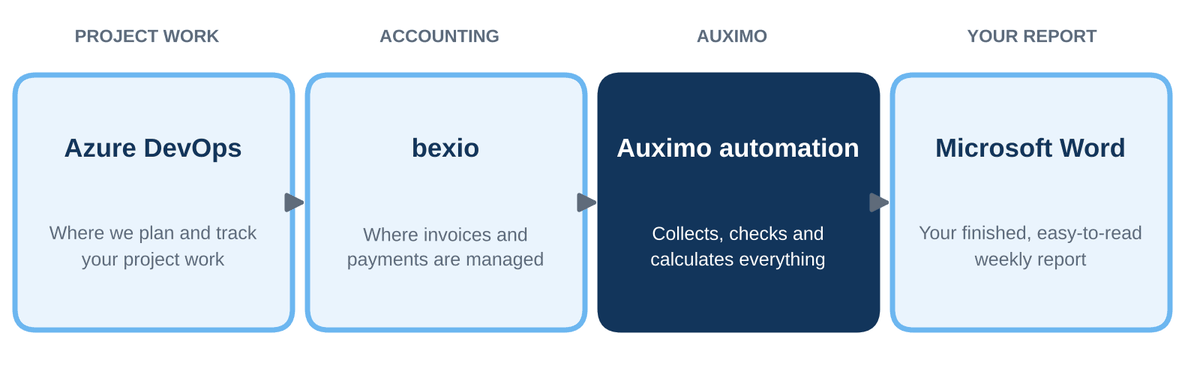
Azure DevOps (project tracking)
Microsoft's DevOps platform is where we plan and track your project: every project, its steps, due dates and completion dates. Because the status comes straight from the real project data, it reflects what is actually happening.
bexio (invoicing and payments)
Your invoices, invoice numbers, due dates and payment status come from our accounting software, so the payment plan in your report is always current.
Auximo automation
Our own automation reads both sources, calculates the traffic-light status and the timeline, and fills in the report. This is the part that saves hours of manual reporting.
Microsoft Word (your report)
The result is a regular Word document in a fixed layout. Easy to read, easy to forward, easy to archive. No special software or login is needed to open it.
A guided tour of your weekly project report
Every report has two parts. The first page is the Project Overview. After it comes one detail page for each of your projects. Here is the layout:
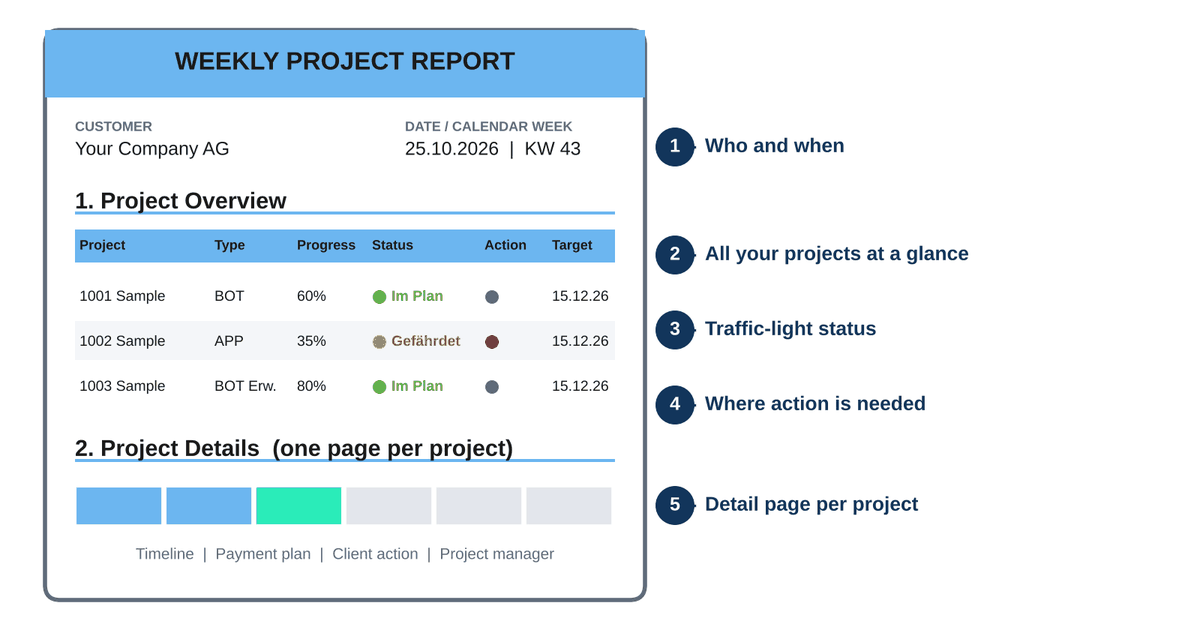
- Who and when. Your company name, the date and the calendar week (KW), so you always know which week you are looking at.
- All projects at a glance. One row per project with project number, name, type, progress and target date.
- Traffic-light status. A coloured dot and a word that tell you how the project is doing.
- Where action is needed. A dot that shows whether we need something from you.
- A detail page per project. Timeline, payment plan and your project manager, all on one page.
Which projects are included?
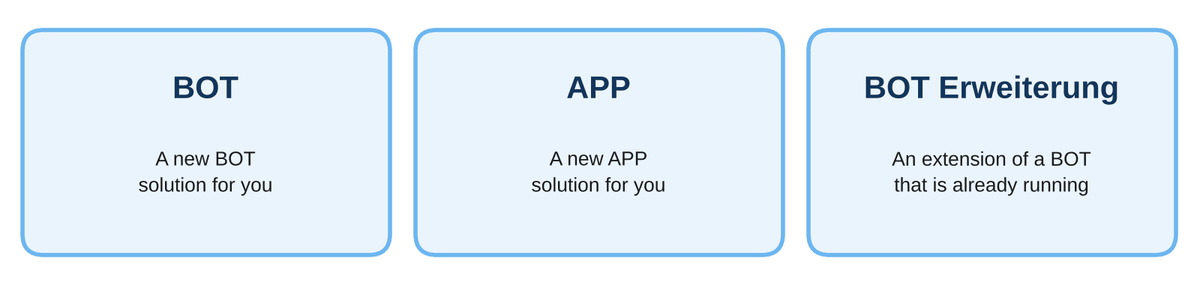
Your report lists the projects that are currently running. Finished projects drop out of the report on their own, so it never fills up with old news. Depending on what we are building with you, a project is one of three types:
The traffic light: how is my project doing?
The status is the quickest way to feel the pulse of a project. It always looks at the step we are working on right now and compares today's date with that step's due date.
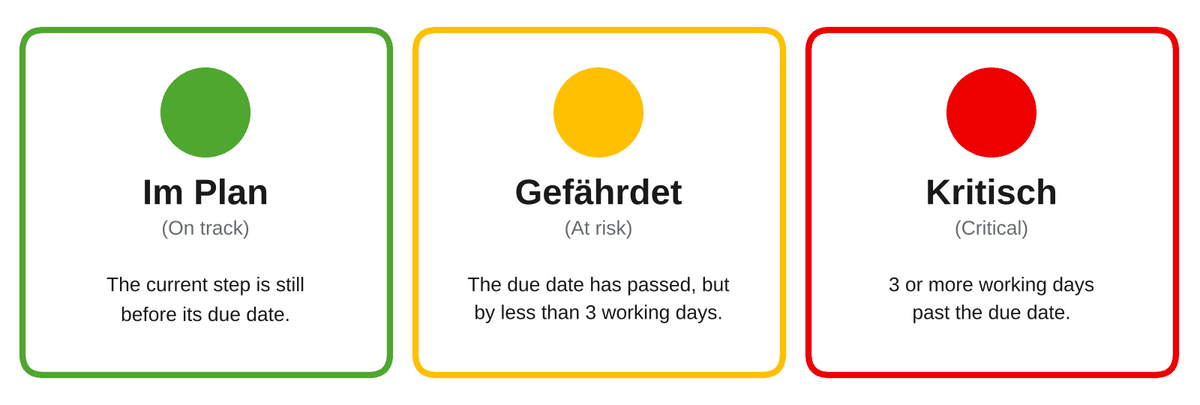
Good to know. Weekends are not counted. If a due date falls on a Friday, then Monday and Tuesday still count as "Gefährdet". A step only turns "Kritisch" after three full working days have passed. "Gefährdet" is an early warning, not an alarm. It means: we are a little behind, and we are on it.
The timeline: what is done, what is next
Every project follows the same six stages, from the first approval to the final review. The timeline shows them in order, so you see the whole journey at a glance.
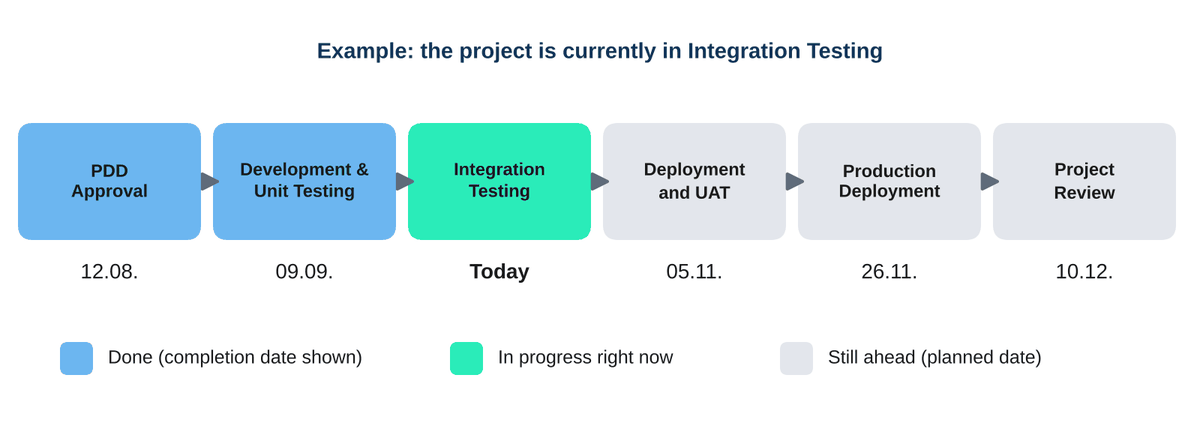
The colours do the explaining. Blue stages are finished and show their completion date. The green stage is what we are working on today, which is why it says "Today". Grey stages are still ahead and show their planned date.
Client action: is something needed from me?
Nobody likes a project that stalls because someone was waiting for an answer nobody knew was needed. That is why every project page has a Client Action box.
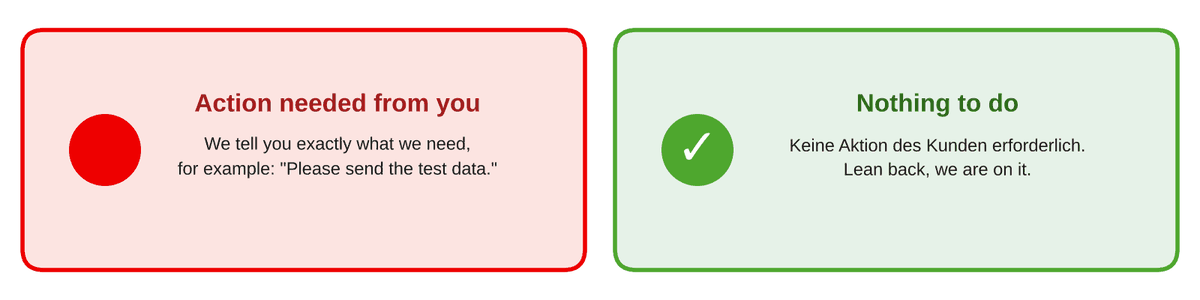
- Red dot: we need something from you. The box tells you exactly what, in plain words.
- Green check mark: nothing to do. The box says so clearly, so an empty field never leaves you wondering.
The payment plan: always clear, never a surprise
Every project page also shows your payment plan. Payments are split into three steps, tied to real project progress: 25 % at the start (Down Payment), 50 % at Client Acceptance and 25 % at Go-Live.
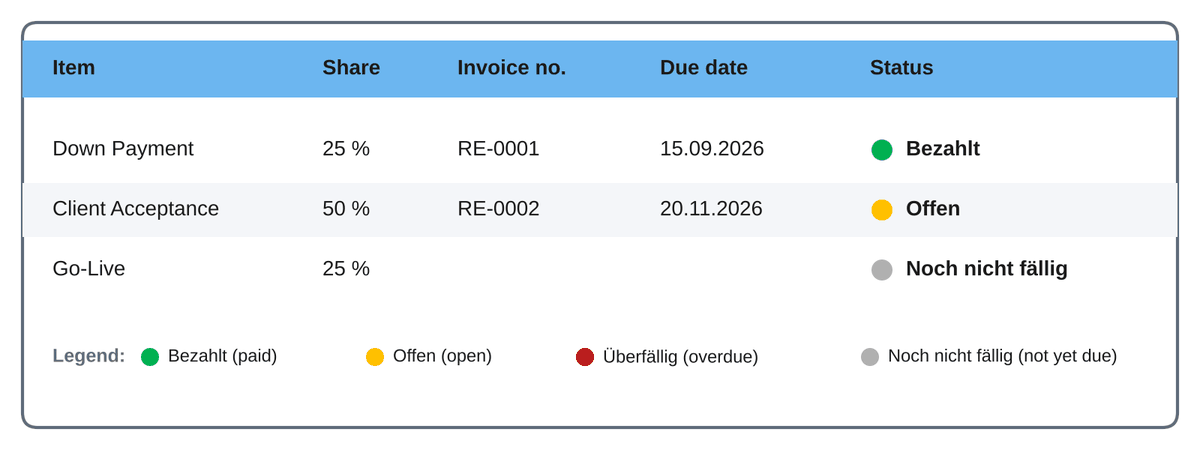
For each step you see the invoice number, the due date and a status:
- Bezahlt (green): the invoice is paid. Thank you!
- Offen (amber): the invoice has been sent and is waiting for payment.
- Überfällig (red): the due date has passed and payment is still open.
- Noch nicht fällig (grey): there is no invoice for this step yet. Invoice number and due date stay empty until there is one.
What this means for you
Clarity
One document, one layout, every week. You never have to hunt for the status of your project.
Honesty
Delays show up as "Gefährdet" or "Kritisch" instead of being hidden. You hear it from us first.
Less back and forth
Open questions and payments are visible at a glance, so fewer status calls and emails are needed.
That is the Auximo way of working: we do not only build your solution, we keep you in the picture while we do it.
Frequently asked questions
What is the Weekly Project Report?
It is a Word document that summarises the state of all your running projects with Auximo: status, timeline, open questions and payments. It is prepared for your company and follows the same layout every week.
How often do I receive it?
Weekly. The calendar week (KW) and the date are printed at the top, so you always know which week the report covers.
What do Im Plan, Gefährdet and Kritisch mean?
Im Plan (green) means the current step is still before its due date. Gefährdet (amber) means the due date has passed by less than three working days. Kritisch (red) means three or more working days have passed. Weekends are not counted.
My project says "Gefährdet". Should I worry?
No need to panic. It is an early warning that a step is a little behind its planned date. If we need something from you to get back on track, the Client Action box on the project page will say so.
What should I do when I see the red dot under Client Action?
Read the text in the box. It tells you exactly what we need from you, for example a document, a decision or access to a system. Once you have sent it, we continue. If anything is unclear, ask your Auximo project manager.
What does the green check mark mean?
It means there is nothing for you to do right now. The box reads "Keine Aktion des Kunden erforderlich." (no client action required).
Why is my project missing from the report?
The report shows running projects only. A finished project no longer appears. If you expect a project to be listed and it is not, please contact your Auximo project manager.
What are the six timeline stages?
PDD Approval, Development & Unit Testing, Integration Testing, Deployment and UAT, Production Deployment and Project Review. Every project follows this order. Behind the scenes there are a few additional working steps, such as System Documentation and Solution Storing. We group these into the stage they belong to, so your timeline stays simple.
Why does the timeline say "Today"?
"Today" marks the stage we are working on right now. Stages before it show the date they were completed, stages after it show their planned date.
How do I read the payment plan?
Each row is one payment step (Down Payment, Client Acceptance, Go-Live) with its share of the total. You see the invoice number, the due date and a status: Bezahlt (paid), Offen (open), Überfällig (overdue) or Noch nicht fällig (not yet due).
Why are the invoice number and due date empty?
Because there is no invoice for that step yet. The row then shows "Noch nicht fällig". Both fields fill in automatically as soon as the invoice exists.
Who is my contact for a project?
The project manager is named on each project's detail page. That is the person to contact with any question about that project.
Which tools are used to create the project status report?
Project data comes from Azure DevOps, invoice and payment data from bexio. Auximo's automation combines both and produces the finished report as a Microsoft Word document.
Can Auximo set up automated project status reporting for my company?
Yes, that is exactly the kind of thing we love to do. If you already track work in Azure DevOps, we can connect it to a clear weekly project status report in your layout and your language. Get in touch and we will look at your setup together.
Do I need Azure DevOps to receive reports from Auximo?
No. As our customer you simply receive the finished Word report. Azure DevOps is the tool we use to plan and track the work.
What is the difference between a project status report and a dashboard?
A dashboard has to be opened and interpreted. A status report is delivered to you, in a fixed layout, with the interpretation already done: status, next steps and open questions. Many customers prefer that for steering meetings and management updates.
Why is my report in German?
Labels and statuses in the report are in German. If you would like a different language, please tell your Auximo contact.
Want automated project status reports for your company?
Do you track projects in Azure DevOps and spend hours building status reports by hand? Auximo can set up automated, customer-friendly project reporting for your company too. Get in touch with Auximo for a short conversation and a sample report based on your own setup. Learn more about our solutions and AuximoDevelopment.
Talk to Auximo
Book an appointment with the Auximo team to discuss the processes you would like to automate.
Book appointment